Assistant
Finally, someone to delegate to.
Hand it the board question or the renewal. It does the research and writes the draft, and you make the call.

The most capable AI assistant built for K-12 operations. It knows the deadlines a California district answers to, like CBEDS day and the second interim, and it reads your own contracts, purchase orders and board agendas. What it hands back is ready for cabinet, and each figure links to the record it came from.
It learns the job, then takes work off your desk.
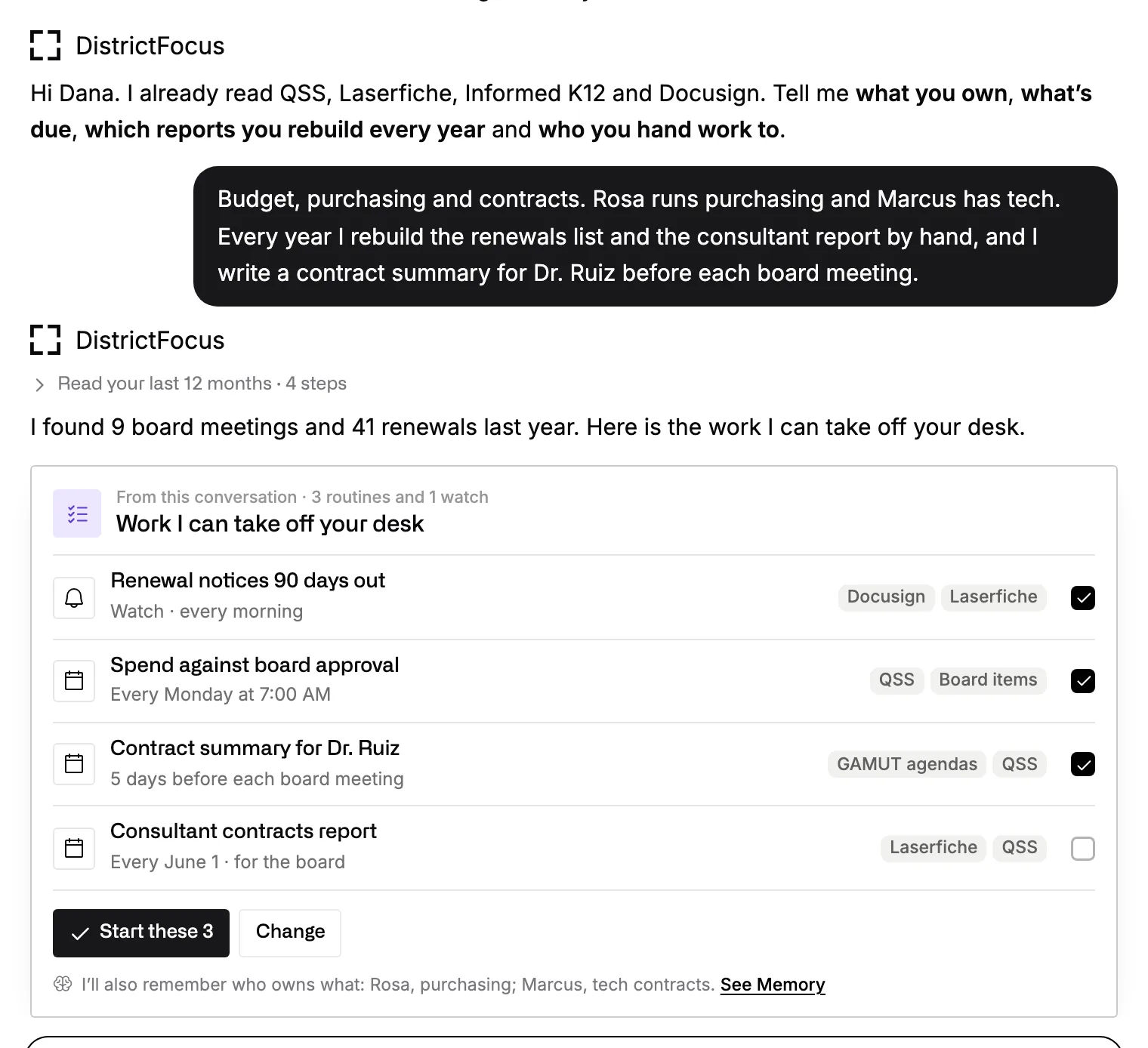
It starts the way a good new hire would, by asking about your job. Then it takes on the reports you’ve been rebuilding by hand every year.
Day one
It asks about your job, then proposes a plan.
Tell it what you own, what’s due and who you hand work to. While you talk, it reads a year of your contracts, POs and board meetings. Then it offers the routines it can run for you, like renewal notices 90 days out or a contract summary before each board meeting. You choose the ones to start.
From then on
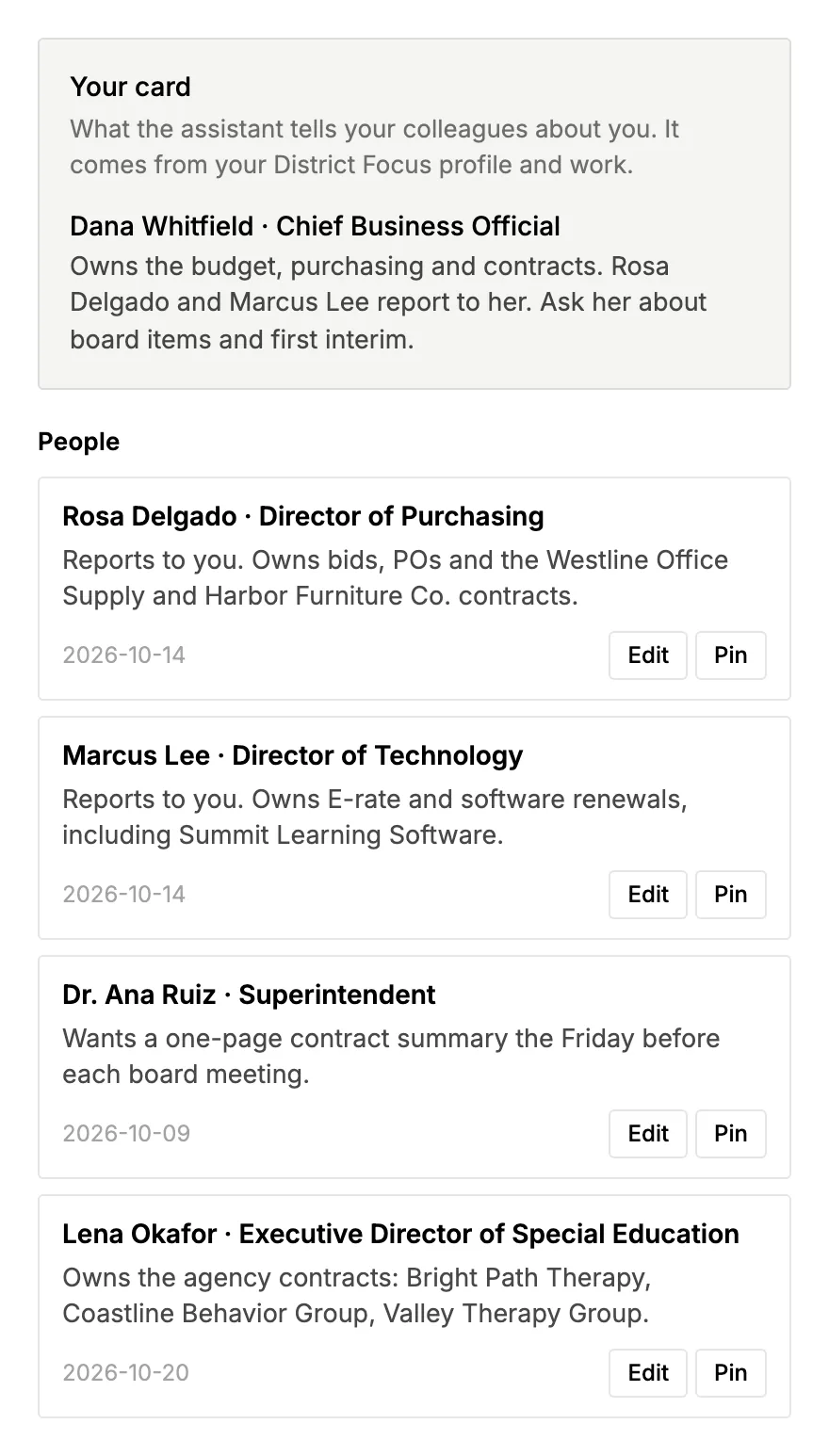
It remembers how you work and who does what.
It keeps short notes as you go: that the superintendent wants a one-page summary the Friday before a board meeting, which director owns which vendor, who reports to whom. You can read, edit or delete any note in Settings.
Takes on the work you’d otherwise send to a consultant.
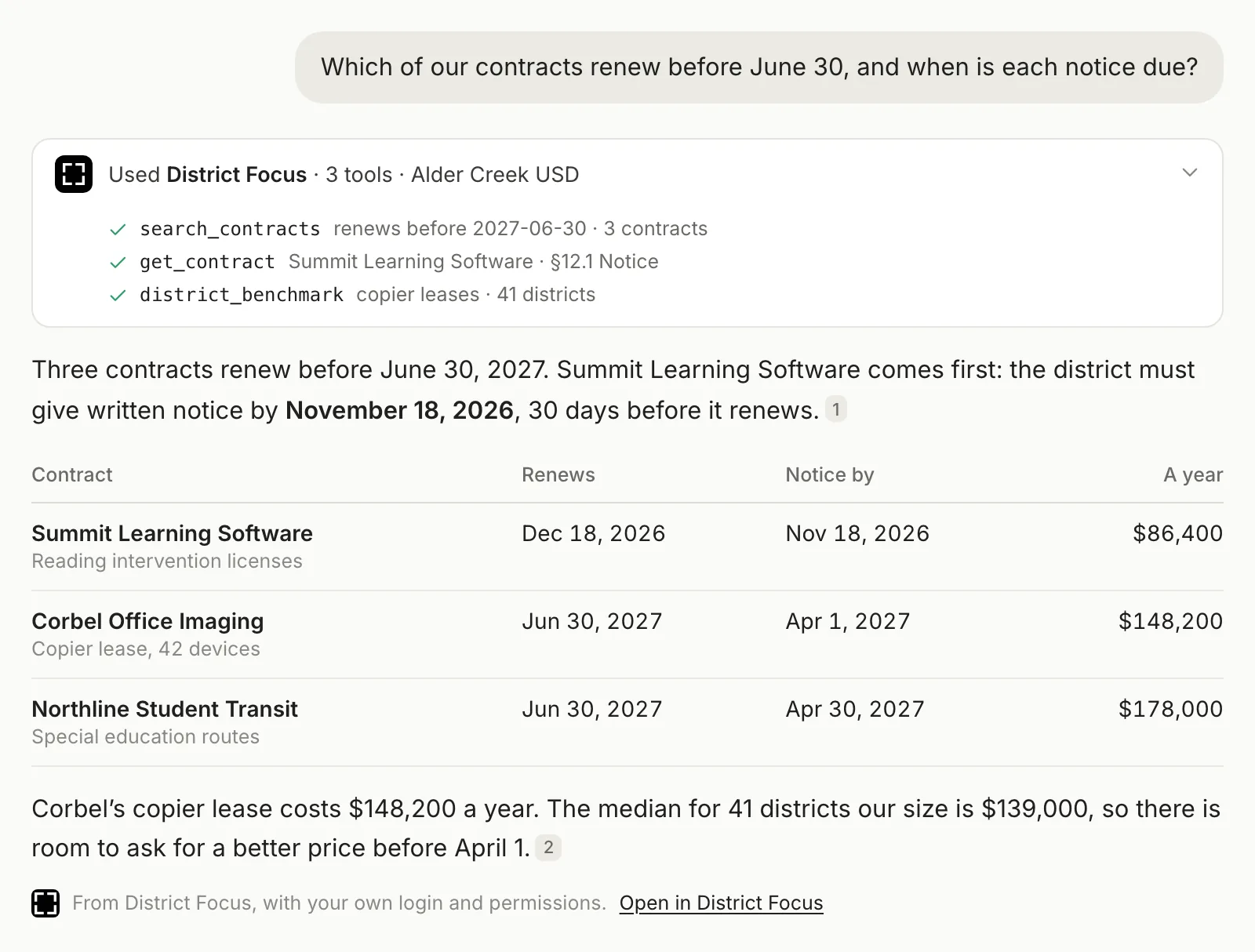
Ask in plain words. It works through thousands of records, reads what other districts have published, writes the finished document on your template and carries out the next step in the systems you’ve connected.
Runs the analysis behind a big decision.
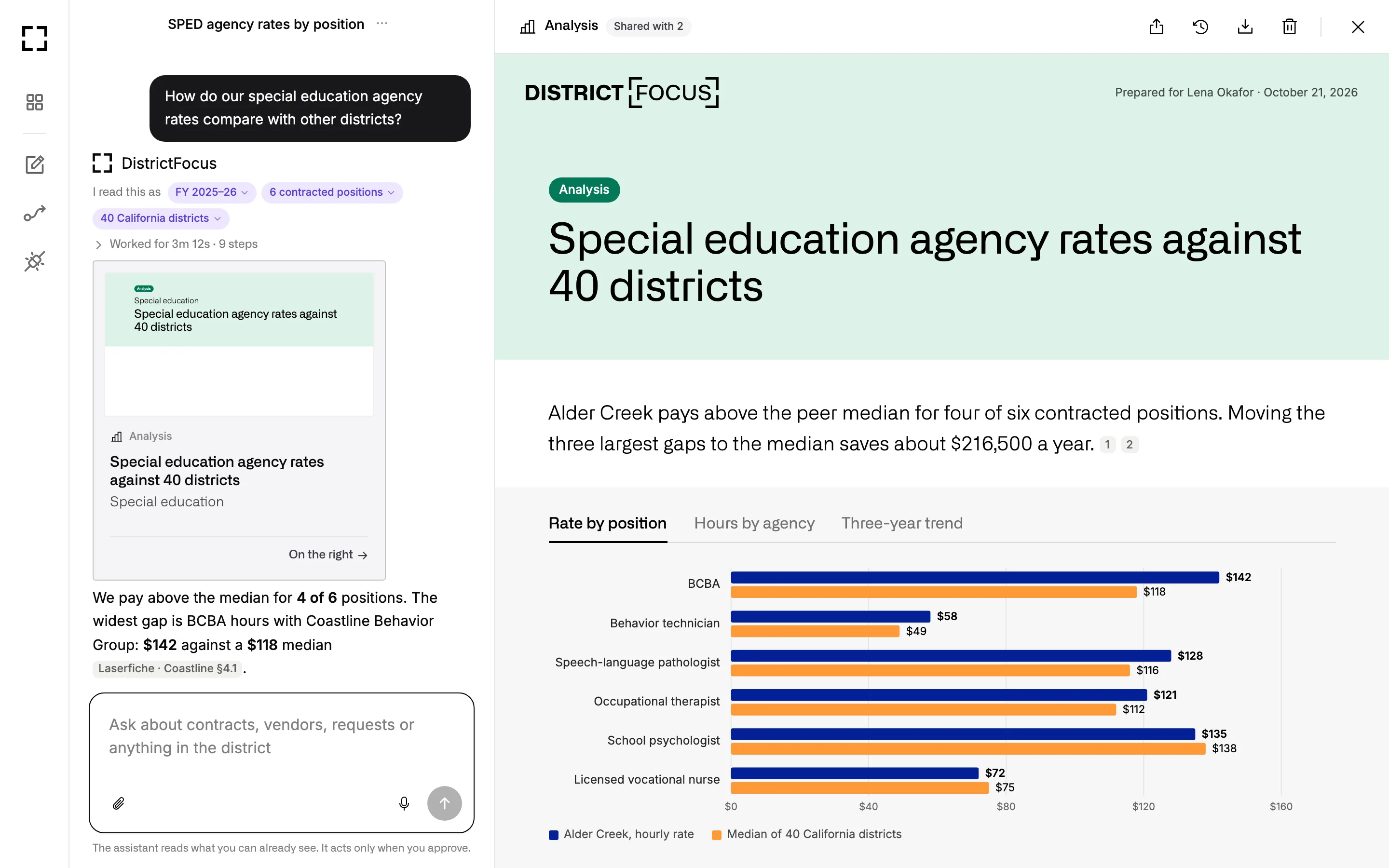
It reads three years of purchase orders, every agency contract and what other California districts pay. Then it writes up the findings the way a research team would publish them, with a summary, charts, a rate table and numbered sources.
Try asking
How do our special education agency rates compare with other districts?
Finds what other districts paid, in their own public records.
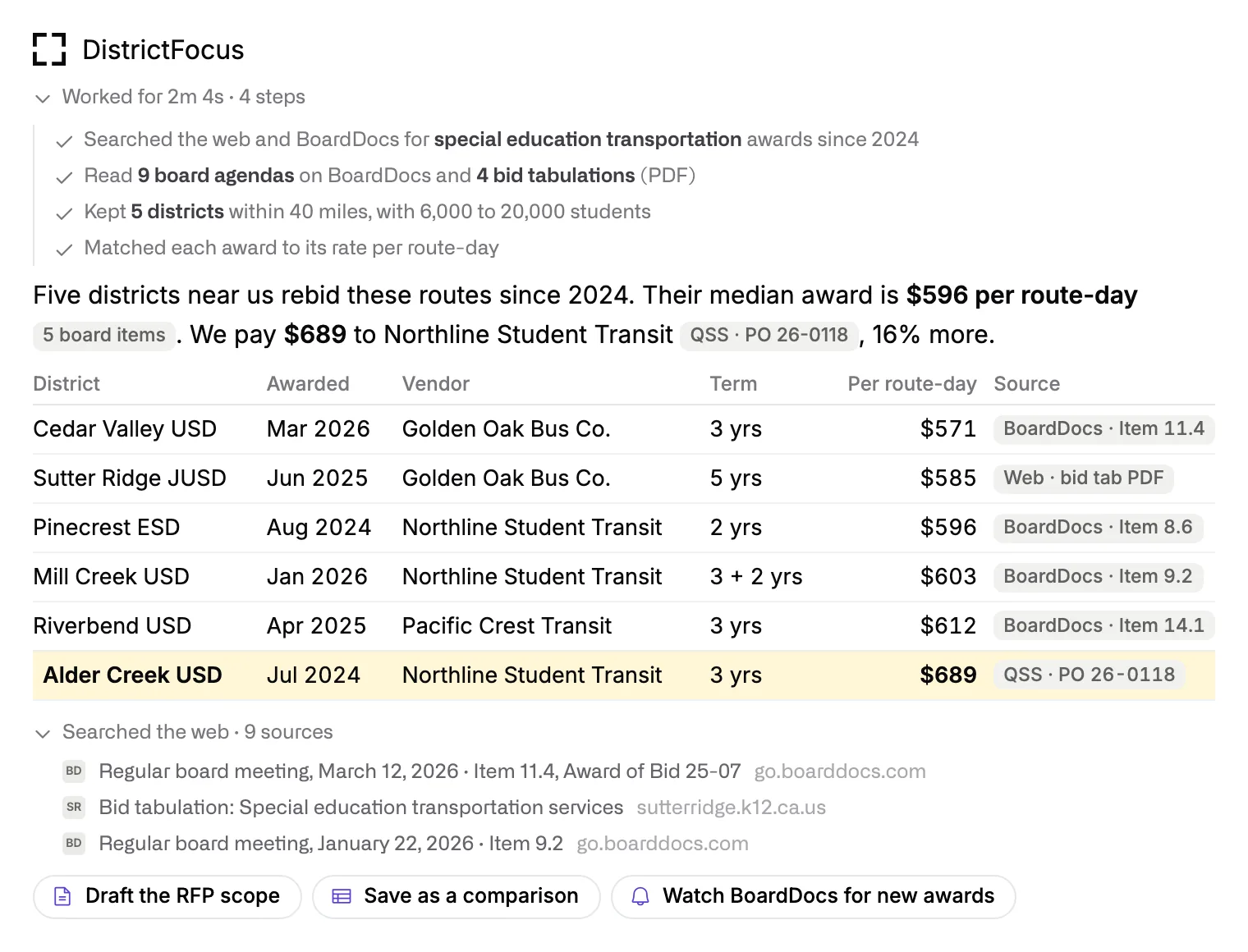
It searches the web and public board agendas, reads the bid tabulations and award minutes, and lines up each award with a link to its source. You get one table you can check, without the digging.
Try asking
Our special education transportation contract ends in June. What did districts near us get when they last bid it?
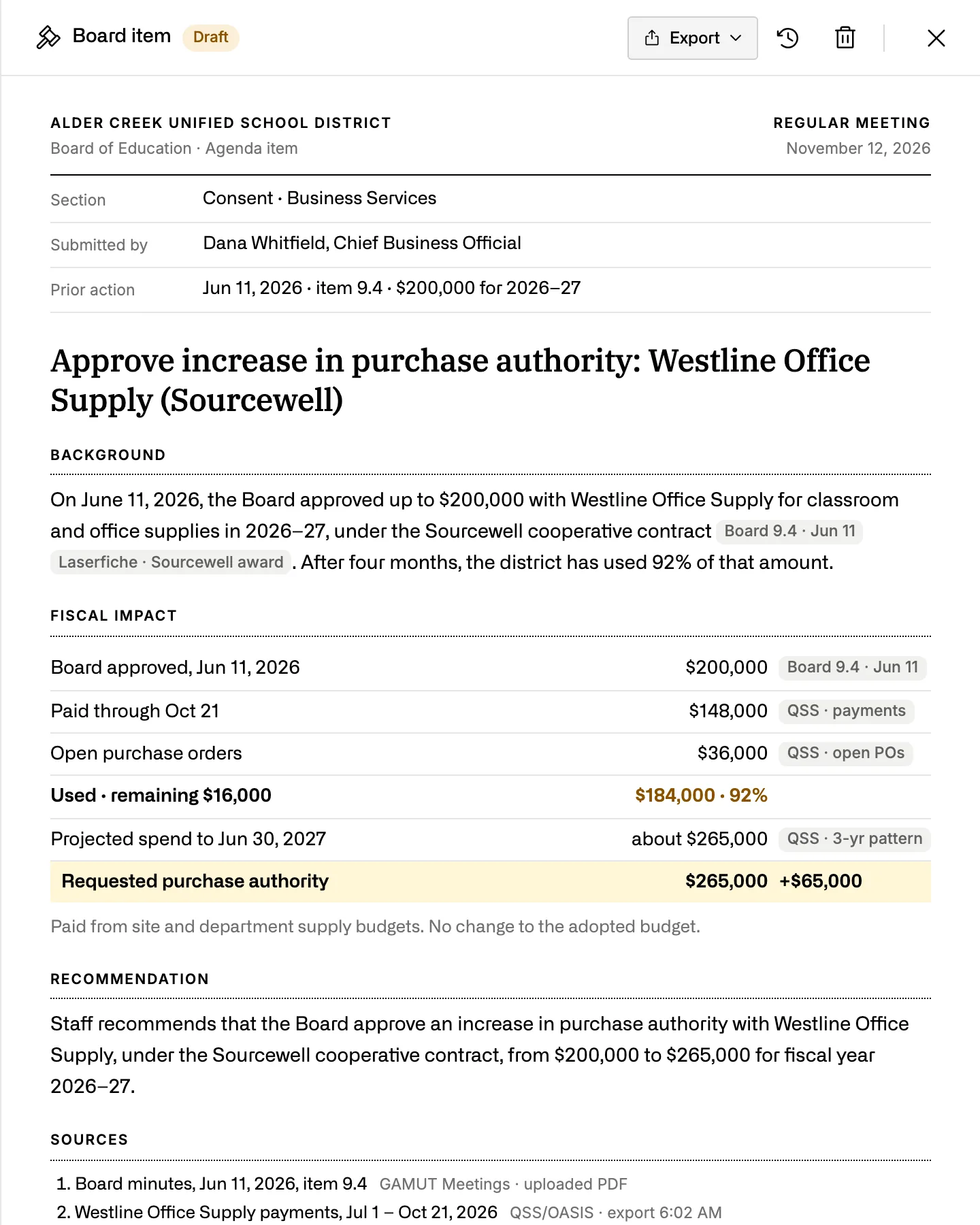
Hands you the finished board item.
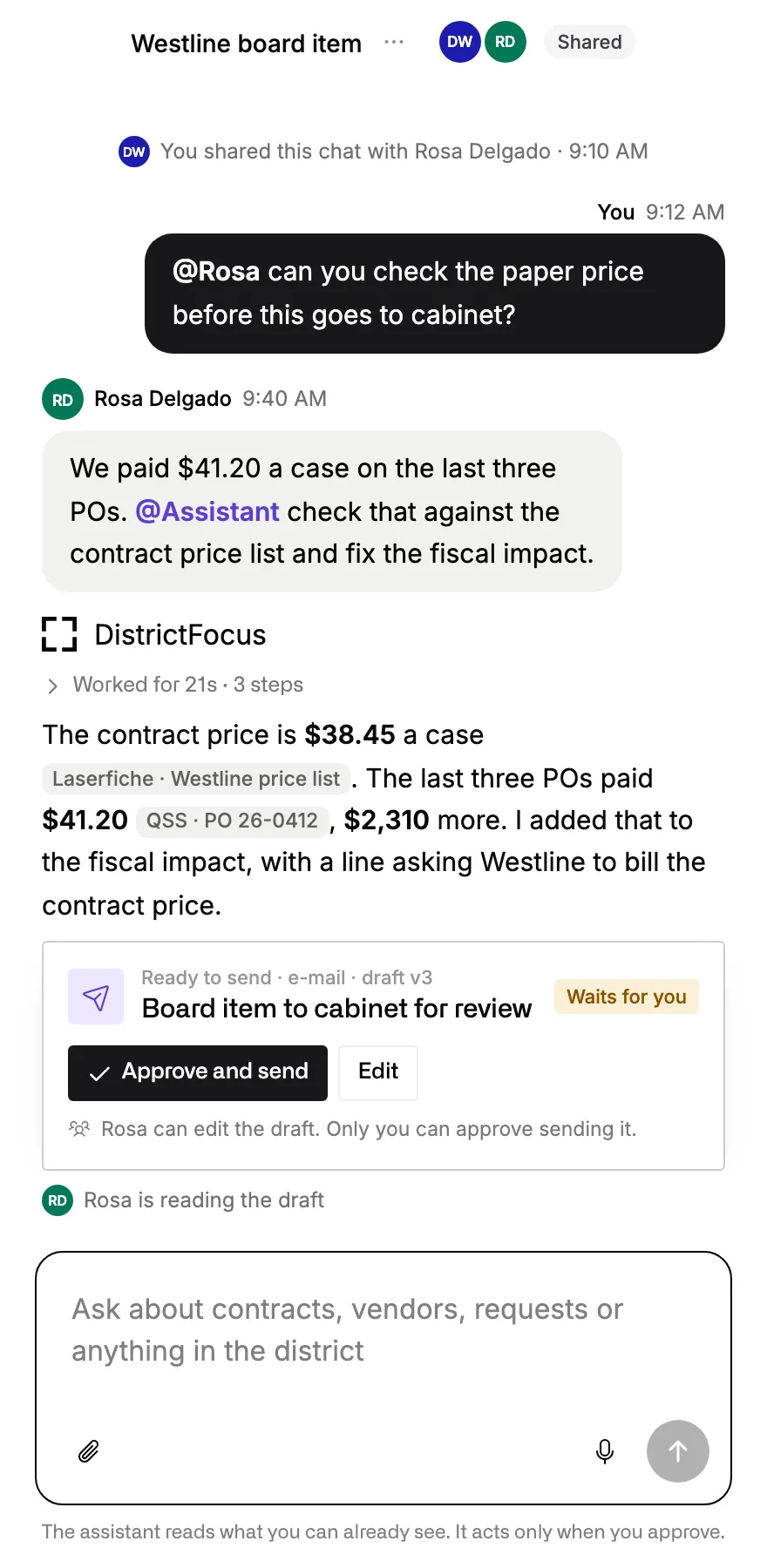
Board items, cabinet briefs, trustee answers and letters, written on your district’s template, with the fiscal impact filled in from your finance system. Open it in Word, edit it, or send it on for review.
Try asking
Draft the board item to raise Westline’s purchase authority for the rest of the year.
Takes the next step in your tools.
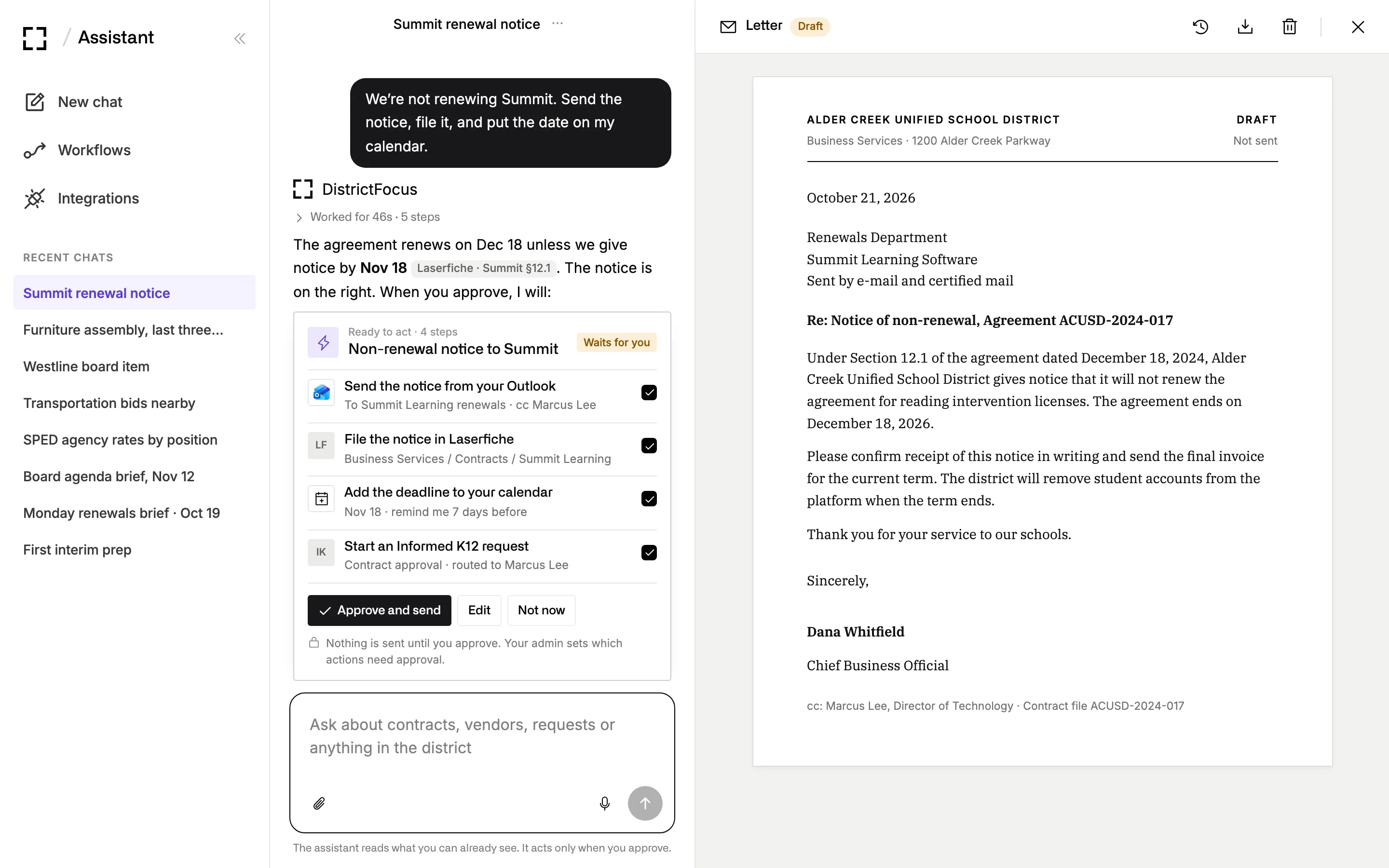
It sends the notice from your Outlook, files it in Laserfiche, puts the deadline on your calendar and starts the approval in Informed K12. It shows you the steps first and acts only when you approve.
Try asking
We’re not renewing Summit. Send the notice, file it, and put the date on my calendar.
It works inside the systems your district already runs.
It reads your finance system and your contract archive directly, so its figures match the ones in your own books.
-
Your admin connects each system once.
They add it in Settings with a service key or a district sign-in, and nobody else has to set anything up.
-
Connections are read-only by default.
Your admin decides where the Assistant may also act, such as starting an approval in Informed K12, and what it may never do there.
-
It sees only what the person asking may see.
Mail, calendars and personal files open only with a person’s own sign-in, and the student side of your student information system can stay closed.

Finance and purchasing
- County finance (QSS) Finance
- Munis Finance
- Workday Finance
- OpenGov Procurement
- Bonfire Bids
- Amazon Business Purchasing





Contracts, approvals and files
- Laserfiche Documents
- Informed K12 Approvals
- Docusign Signatures
- SharePoint Files
- Google Drive Files
- OneDrive Files





Board and public records
- BoardDocs Board
- Granicus Board
- USAC E-rate Public data
- CDE Public data
- SDPC registry Privacy agreements
- The web Search and public sites





Mail, calendar and office
- Outlook E-mail
- Gmail E-mail
- Microsoft Word Documents
- Google Docs Documents
- Excel Spreadsheets
- Zoom Meetings



Staff and schools
- Aeries Staff and schools
- PowerSchool Staff and schools
- Infinite Campus Staff and schools
- ClassLink App usage
- Clever Rostering
- Incident IQ Assets






Using something else? A nightly export or a shared folder works until there’s a connector.
Recurring work runs on the district calendar.
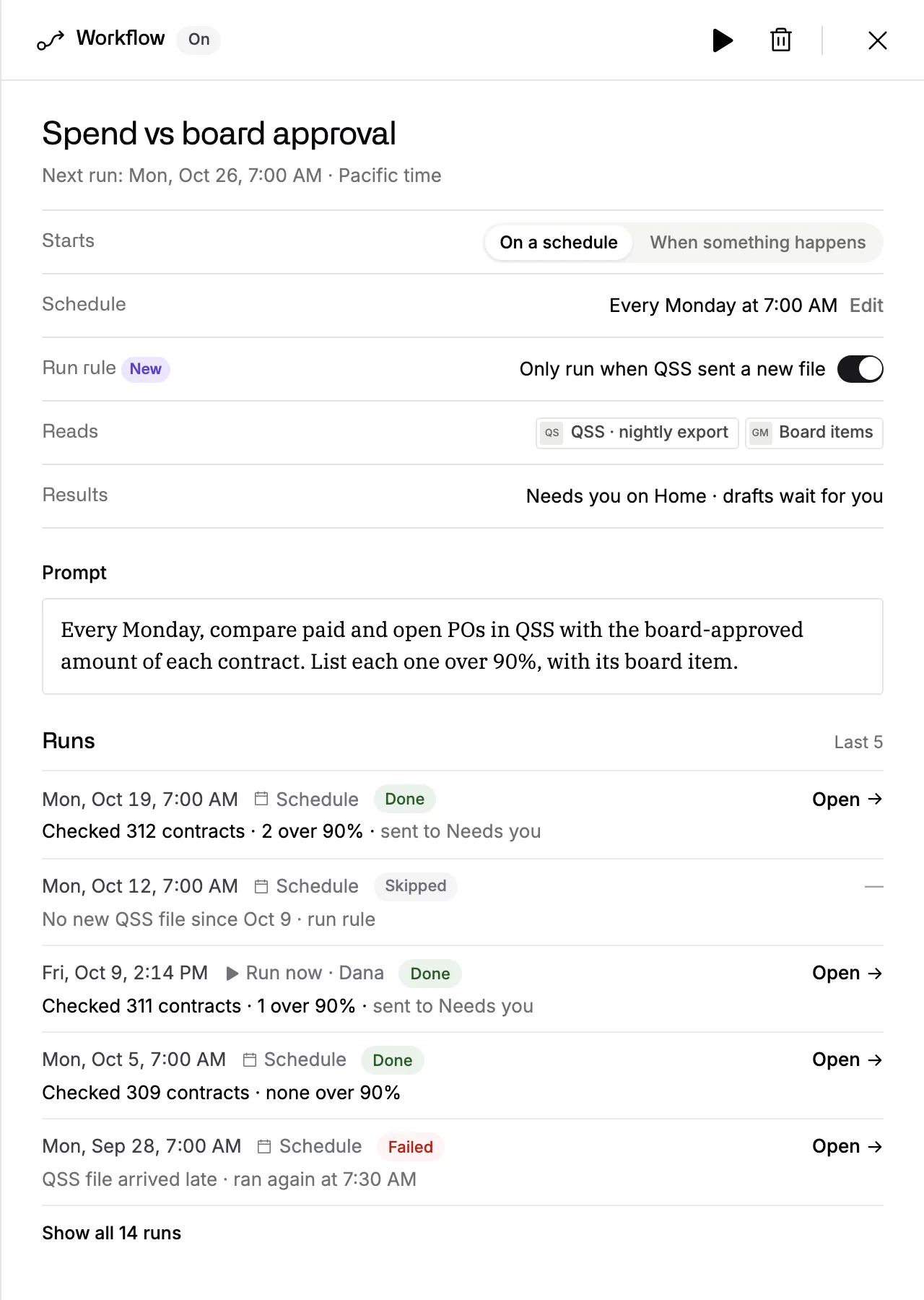
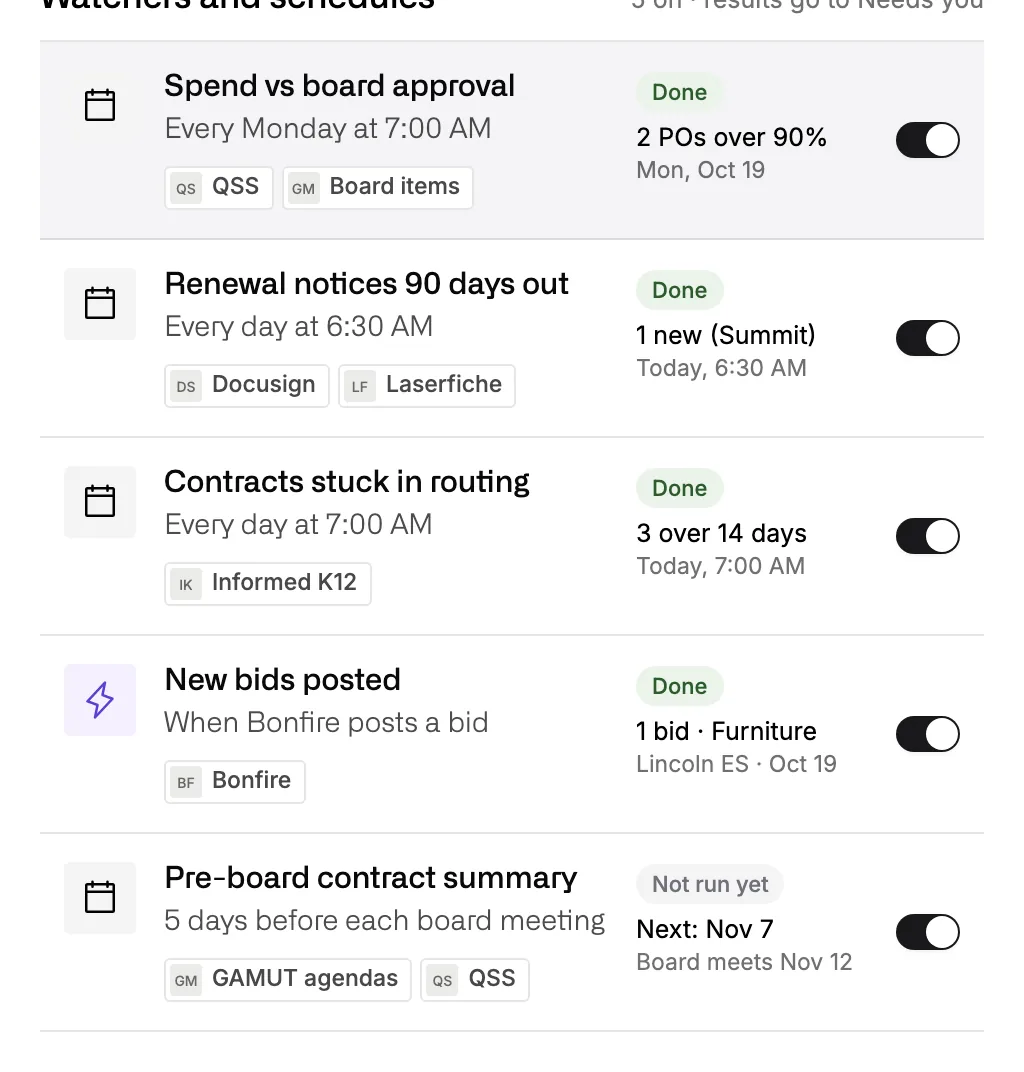
Turn any request into a workflow. It runs on a schedule or when something happens, and the finished draft is waiting on the right person’s Home page.
The California district year
-
July 1
New fiscal year
Open POs and renewals that carry into the new year, sorted by owner.
-
October
CBEDS census day
Software seats checked against the new enrollment count.
-
December 15
First interim
Spending by vendor against budget, ready two weeks early.
-
By January 10
Governor’s budget
What the January proposal means for next year’s contracts.
-
January to March
E-rate filing window
Next year’s requests, with last year’s bids and awards beside them.
-
March 15
Second interim
Vendor spending again, with the POs that are close to their board approval.
-
By May 14
May Revision
The revised state budget, read against the renewals you’re about to sign.
-
By July 1
Budget adoption
Contract costs for the adopted budget, and the renewals that start in July.
-
Every Monday, 7:00 am
Contracts renewing in the next 90 days, with the notices drafted
-
Five days before each board meeting
A one-page contract summary for the superintendent
On a schedule
Set it to run weekly, monthly, once a year, or a few days ahead of a board meeting. Every run starts from the latest data.
When something happens
-
A PO passes 90% of its board approval.
It drafts the board item to raise the amount.
-
Bonfire posts a bid for something you buy.
It compares the bid with what you paid last time.
-
A contract comes within 120 days of auto-renewal.
It drafts the notice and tells the contract’s owner.
From a template for your role
Business services, purchasing, special education, technology and the superintendent’s office each get ready-made workflows. Pick one and change what you like.
Works with the whole district office.
Cabinet, business services, purchasing, special education and technology work with one Assistant, from the same records.
-
Bring a colleague into the thread.
Share a chat with your purchasing director, who sees the question, the sources and the draft. They can ask the Assistant to correct a figure, and only you can approve sending it.
-
Teach it a process once.
Show it how your district writes a board item or runs a renewal, and the next person who asks gets the same steps, in the same format.
-
Everyone sees what their role allows.
It works within the person’s own access. Your chats stay private until you share them, and finished documents belong to the whole district team.
Other chat apps
Staff who prefer another AI chat app can use District Focus there.
Staff can connect District Focus to the AI chat app your district has approved and sign in with their district account. They get the same contracts, prices and documents under the same access rules, and their requests go into the same log.
How the Assistant handles your district’s data.
How we handle your data-
It stays inside your district.
The Assistant can’t open another district’s files, chats or documents, and people from other districts can’t open yours.
-
Your data doesn’t train AI models.
We don’t train or fine-tune models on your contracts, chats or documents.
-
It won’t keep notes about students.
Each memory note is checked before it’s saved, and a note that names a student, a parent or a guardian is refused.
-
Every action is logged.
The log records who asked, which tool it used, which records it read and when.
See what it would take off your desk.
Bring a task you’d hand off. We’ll show you the Assistant doing that kind of work, and answer your privacy questions in the same call.