Records Requests

Answer records requests on time.

Requests from your website, your records e-mail and the phone land in one inbox with their due dates. District Focus finds what they ask for in the records you already keep, and your staff decide what goes out.

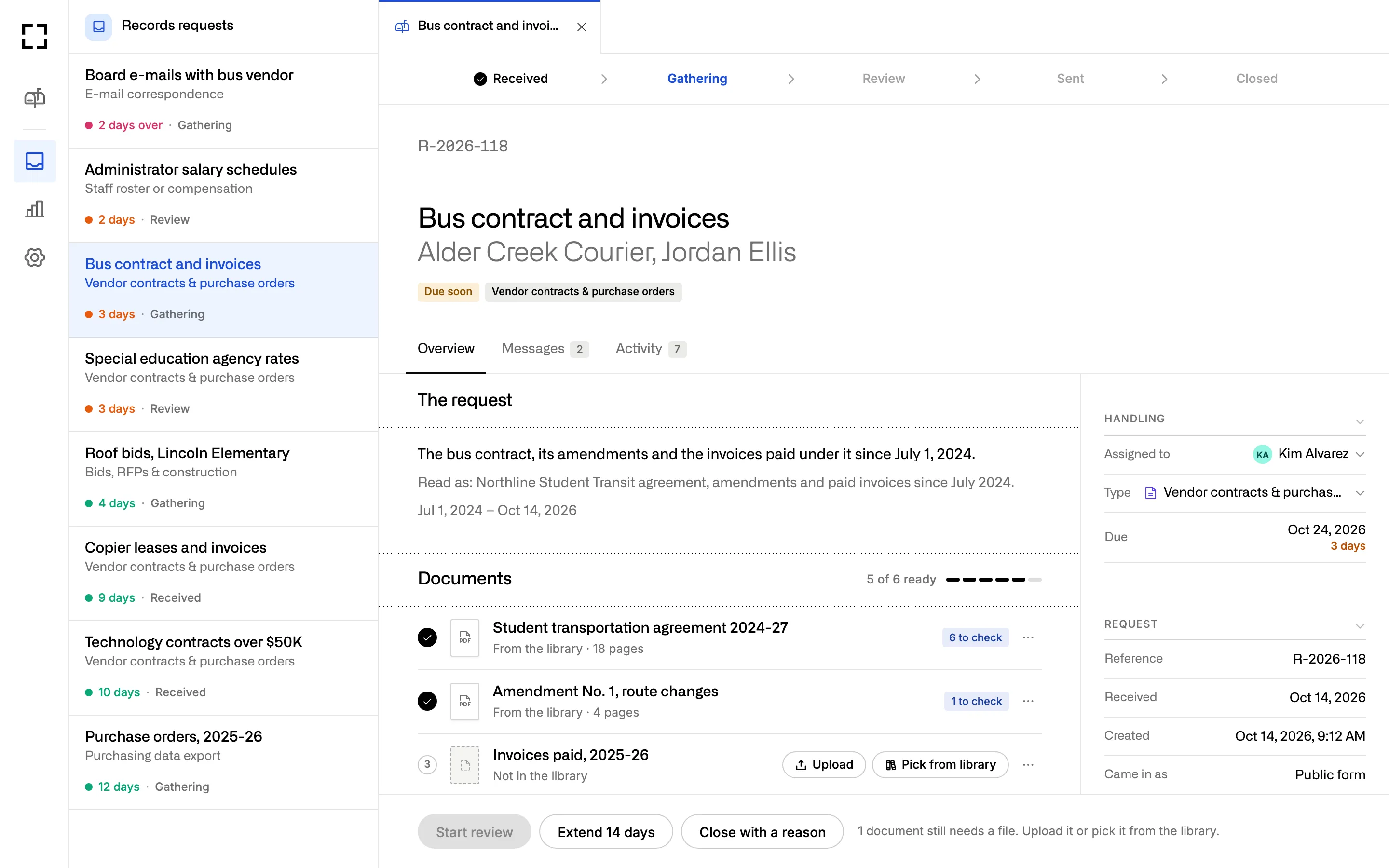
A records request open in District Focus: the inbox on the left, and request R-2026-118 for a bus contract and invoices at the Gathering step, with five of six documents ready and a due date three days out.

Records requests to a district often ask for paperwork it already holds: a vendor’s contract, its amendments, and the purchase orders and invoices paid under it. District Focus finds them in your Library and lists them on the request before anyone opens a shared drive.

One request, start to finish

Follow one request from the form to the release.

Most of these screens follow a request for a bus contract and the invoices paid under it. Every request moves through the same five steps: received, gathering, review, sent and closed.

Step: Received

Requests arrive in one inbox, however people send them.

People fill in a request page with your district’s name on it, or the same form on your website. Mail to your records address opens a request on its own, and staff log calls and paper letters by hand.

Each request gets a number and a due date the moment it arrives. An admin hands it to the person who holds the records, so nothing sits in a personal inbox.
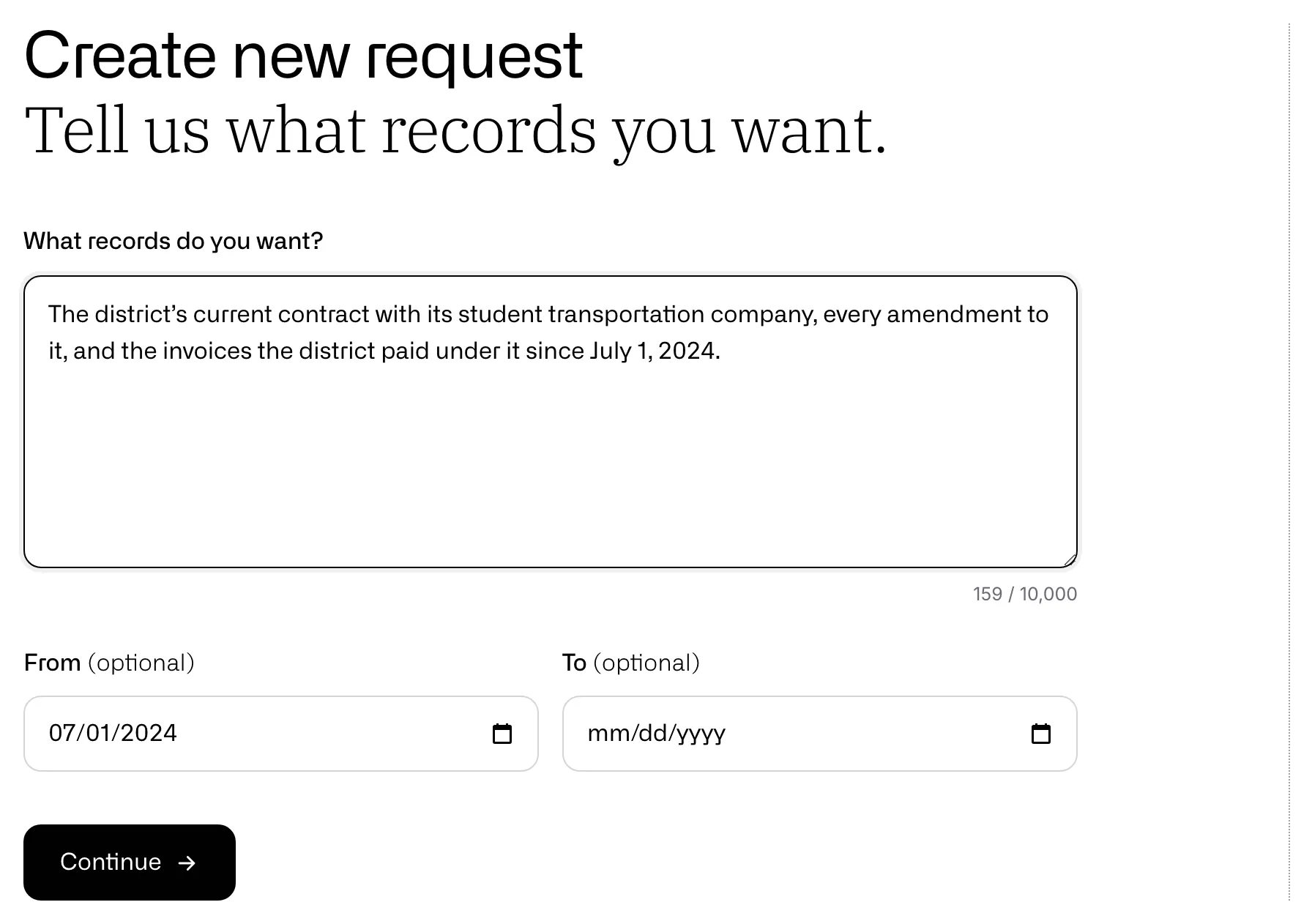
The district’s public request page: a resident describes the records they want, with an optional date range, beside notes that a name is optional, the request stays private and an answer comes within 10 days.

Step: Received

District Focus counts the ten days for you.

The inbox sorts open requests by the time left, so the one that’s two days over sits at the top. Each row shows the step it’s at, who has it and how many of its documents are ready.

If you need longer, take the one 14-day extension and pick the reason. The notice to the requester is written for you.

  1. Day 0 Request received
  2. Day 10 Determination due
  3. Day 24 With the one extension
Gov. Code § 7922.535
Inbox rows sorted by time left: board e-mails with the bus vendor two days over, then administrator salary schedules, the bus contract and invoices, and special education agency rates due in two or three days.

Step: Received

The first letter is drafted from your own template.

Pick what the district found: records exist, some are exempt, there are none, or another agency holds them. The letter fills in the request number, the dates and the code section in your wording, and it goes out when you press send.

Your point person stops retyping the same four letters.

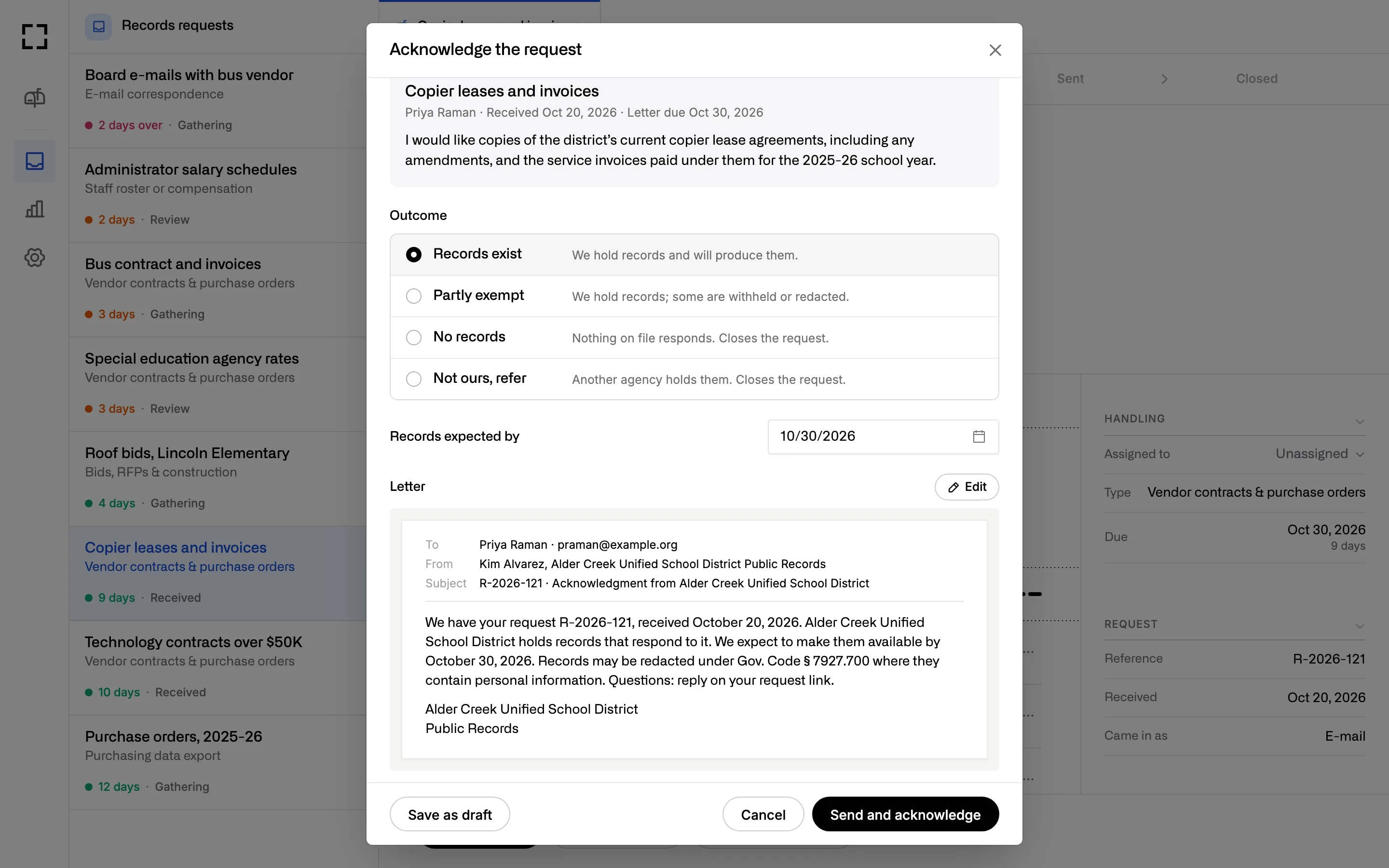
The Acknowledge dialog: four outcomes with Records exist selected, the date records are expected, and the drafted letter to the requester with Save as draft and Send and acknowledge.

Step: Gathering

District Focus finds the contract and invoices in your Library.

It reads the request, names the vendor and lists the agreement, amendments and paid invoices it found. Staff check the list, add anything it missed, or upload the one file that isn’t there yet.

An uploaded file is read and filed in the Library, so it’s there the next time someone asks.

See the Library
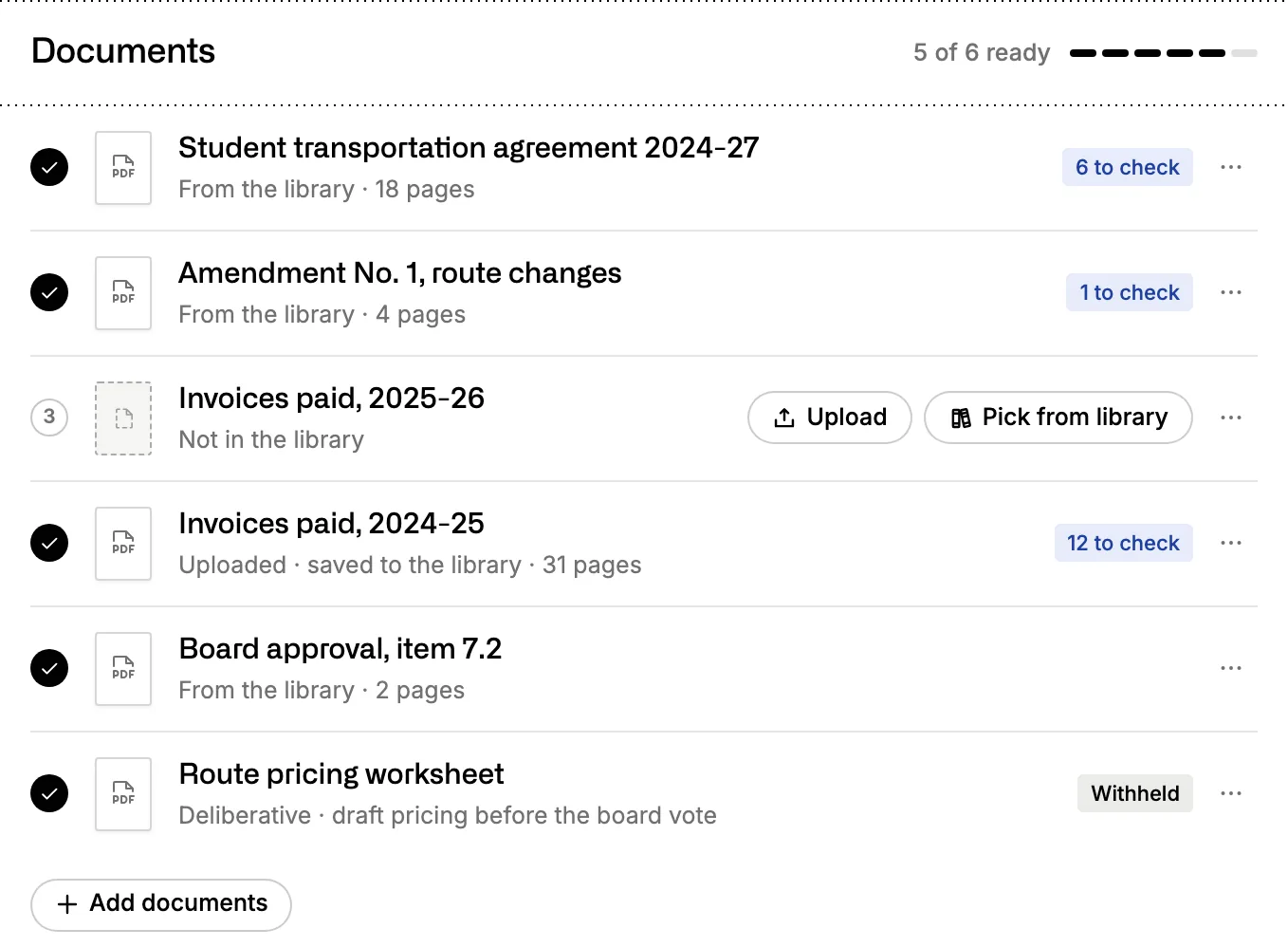
The request’s document checklist, five of six ready: the student transportation agreement and an amendment from the Library with redactions to check, one invoice set missing with Upload and Pick from library, uploaded invoices, the board approval, and a pricing worksheet withheld as deliberative.

Step: Review

You approve every redaction, and each one carries its reason.

District Focus proposes boxes over details it finds by pattern: Social Security numbers, birth dates, license and account numbers, e-mail addresses and phone numbers. Your staff accept or reject each one, draw their own, or find a name and redact it across a document. Student records and legal advice are flagged so a person decides on the whole document.

The release copy is rebuilt from the redacted pages, so the words under a box are gone from the file the requester gets.

The redaction review screen: the document list on the left, page 14 of a student transportation agreement with driver’s license numbers and birth dates blacked out and phone numbers proposed, and the Redactions panel grouped by kind, each with its exemption and accept or reject buttons.

Seven reasons, each with its citation.

Every box carries one, and the redaction log shows it to the requester.

  • Personal contact detail Gov. Code § 7927.700
  • Personal identifier Gov. Code §§ 7927.700, 7927.705
  • Student record FERPA · Ed. Code § 49060
  • Attorney-client Evid. Code § 954
  • Deliberative process Gov. Code § 7922.000
  • Another statute Gov. Code § 7927.705
  • Your district’s own reason Written by your staff

Step: Sent

One release carries the letter, the records and the redaction log.

When your staff send the records, the requester gets the letter and a private link to everything at once: the redacted files and a log of each redaction’s page and reason, never the words removed.

The release can’t go out until every document in it has been reviewed. Records you withhold are listed in the letter with their legal reason.

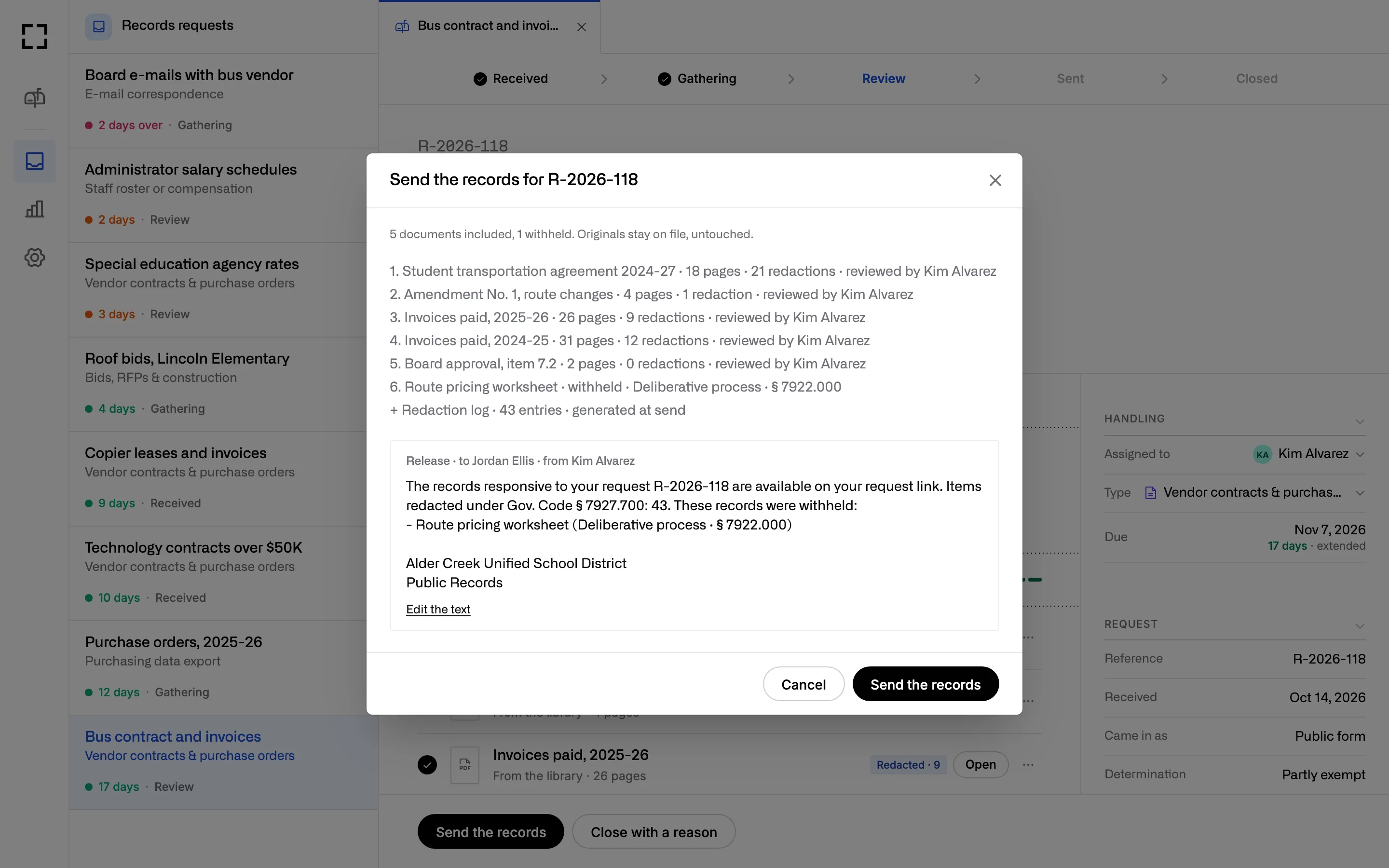
Staff side: the Send the records dialog for R-2026-118, listing five redacted documents with their redaction counts and reviewer, one record withheld as deliberative under § 7922.000, a redaction log of 43 entries, the release letter to Jordan Ellis and the Send the records button.
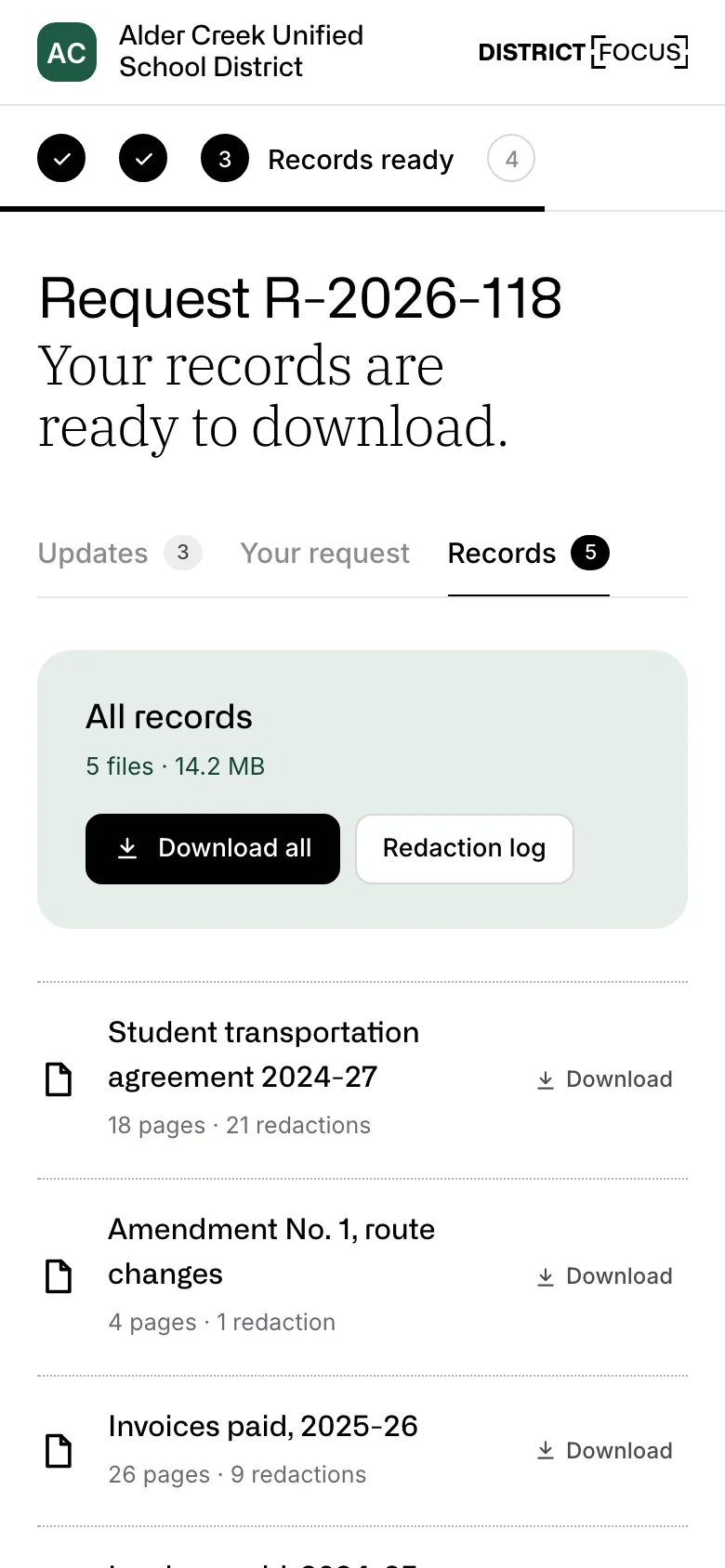
Requester side: the district’s page on a phone, with Request R-2026-118, Your records are ready to download, Download all, the redaction log and each redacted file.
The requester’s page on a phone: Your records are ready to download, with Download all and the redaction log.

Step: Closed

The request closes with its whole history on it.

The Activity log records each step, who took it and when, and every message with the requester stays on the request. Months later, search finds it next to the contract it released.

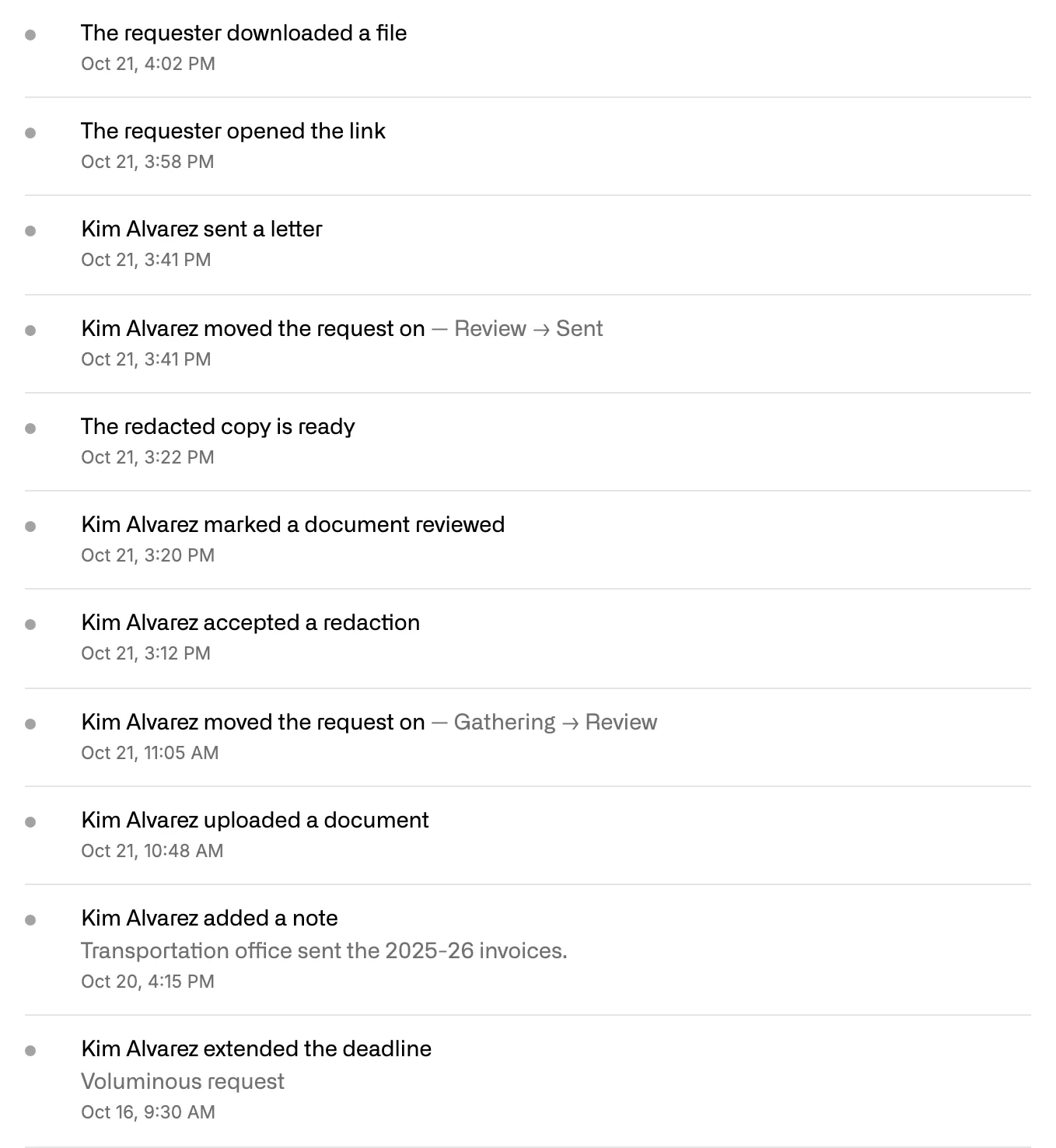
The request’s Activity log, newest first: the requester downloaded a file and opened the link, Kim Alvarez sent a letter and moved the request from Review to Sent, the redacted copy was built, a redaction was accepted, a document was uploaded, a note was added and the deadline was extended for a voluminous request.

Set it up once, in your district’s name.

An admin sets up the request page, the e-mail address, the letters and the team in Settings. Admins see every request, and other staff see the ones assigned to them.

  • 01

    A request page with your name on it

    It carries your district’s name, logo and color, and the same form embeds on your website.

  • 02

    One address for records e-mail

    Mail to it opens a request on its own. When a requester hits reply, the answer lands on the request it belongs to.

  • 03

    Letters in your wording

    Edit the template for each outcome once. Every letter you send is saved as a PDF on the request.

  • 04

    Numbers for the board

    See how many requests came in, what people asked for, who asked and how often the district answered on time.

Every part of District Focus reads the same records.

A contract filed once serves the records request, the spending report and the board question.

  • 01

    Library

    Your contracts, purchase orders, invoices and board items are read and filed in one place, including the files you upload for a request.

  • 02

    Contracts & Spend

    The vendor in today’s request already has its contract, its spending and its renewal date on one page.

  • 03

    Assistant

    The Assistant reads the same Library. When the board asks about that vendor next month, it starts from the same contract and invoices.

What your records team will want to know.

What reaches the requester before your staff act?

A receipt when the request comes in, and the sign-in codes the requester asks for. No letter and no record goes out until someone on your staff sends it.

Does District Focus decide what to redact?

No. It proposes boxes from patterns, and a person accepts or rejects each one. Patterns miss things, so your staff can draw a box anywhere or find a name and redact it across a document.

Student records and legal advice are flagged for a person to decide on the whole document.

Is the text under a redaction really gone?

Yes. The copy the requester downloads is rebuilt from the redacted pages, so the words under a box aren’t in the file.

What does the requester see?

Their own request on a private page, opened from the link in their e-mail: the letters, the messages and the records to download. A new device needs a six-digit code sent to that address.

District Focus doesn’t publish an archive of requests or of the people who made them.

Who on our staff can see a request?

Admins see every request. Other staff see the requests assigned to them. Each step is recorded in the request’s Activity log, with who took it and when.

Bring a request your office answered last month.

We’ll walk it through District Focus with you, from the form to the release, and answer your privacy questions on the same call.