Technology

Count the seats before you renew them.

The Assistant sets the licenses in your technology contracts against enrollment, staff and logins, finds two tools doing one job and drafts the pricing request before renewal. Your admin decides what it can read.

Someone in your district office is already pasting contracts into a chat app your team never reviewed. District Focus gives that work a place you control. You approve each connection, each district stays in its own space, and every action the Assistant takes is logged.

The work

Where your technology money goes, by seat and by job.

Ask it the way you’d ask your data team. It reads your contracts, your counts and public E-rate data, then shows its work so the answer holds up in cabinet.

Sets licenses against the people who use them.

It compares the seats in each contract with Census Day enrollment and staff counts, and with logins from your rostering tools, so a renewal starts from the number you need.

Try asking

Compare the licenses in our technology contracts with Census Day enrollment and staff counts. Where do we pay for seats we don’t use?

A report titled Seats against people: seats in six software contracts against the students or staff each serves, 90-day logins, unused seats and their annual cost.

Maps your tools by the job each one does.

It sorts your technology contracts by function and shows where two tools cover the same job, ranked by dollars, with the next decision date on each. Two tools can serve different people, so each overlap comes to you as a question.

Try asking

Map our technology contracts by the job each tool does. Where do two tools do the same job, and when is the next decision on each?

An answer grouping technology contracts by the job each tool does: web filtering, emergency alerts and e-signature, two tools each, with dollars and a decision date per group.

Checks your price against districts on the same contract.

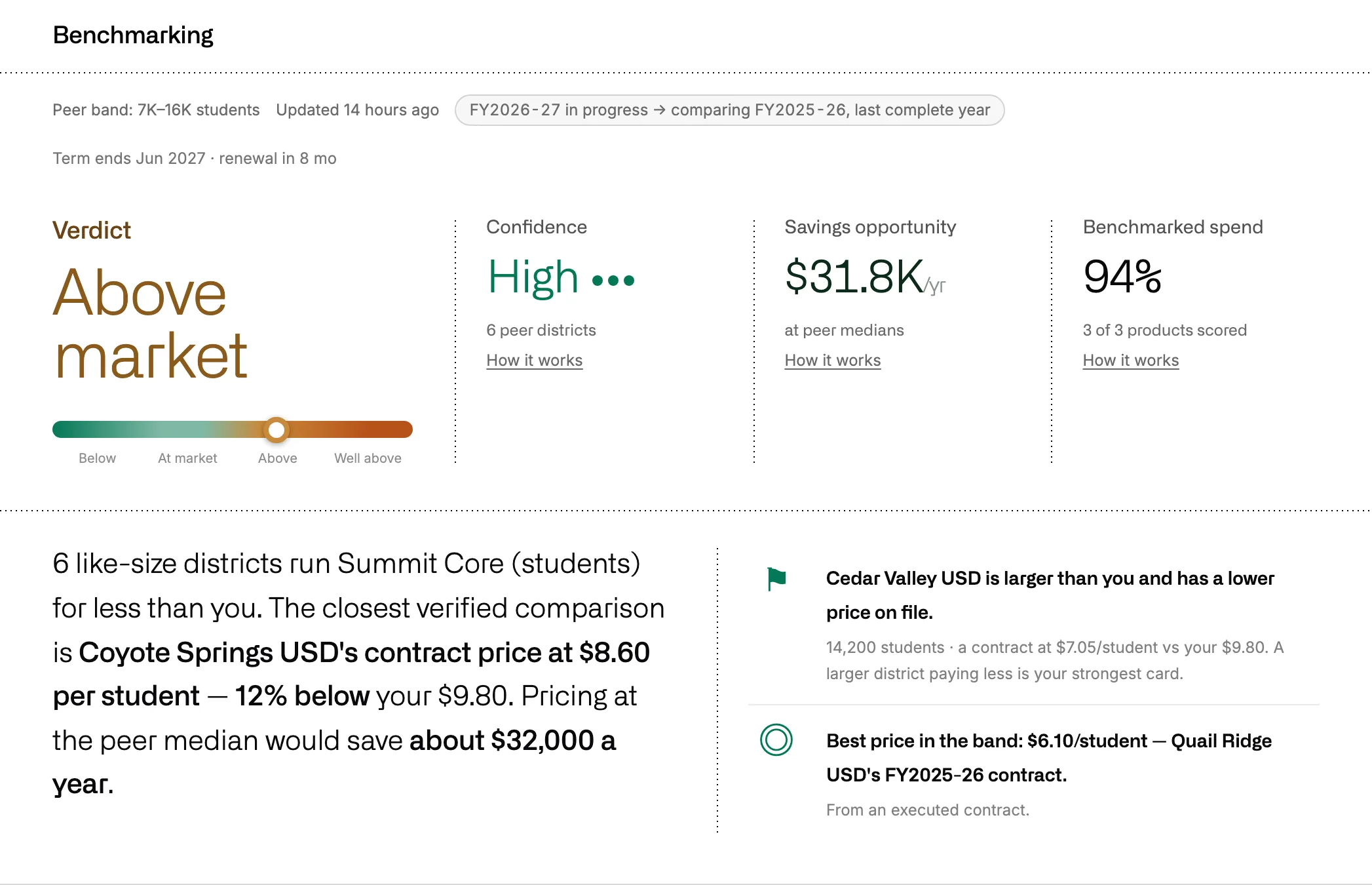
When you buy through a state contract, districts your size should pay the same. It compares your plan and per-unit price with theirs, where a peer price exists, and shows what you’d save at the median.

Try asking

We buy Microsoft 365 through the state contract. Are we on the same plan, SKU and price as districts our size?

A benchmark verdict: Above market, high confidence, a savings opportunity per year and the closest verified peer price per student.

Keeps E-rate in view.

It reads USAC’s open data for your funding requests, providers, amounts and status, lists what needs action this month, and sets the price similar districts got for the same service beside yours.

Try asking

What did our E-rate requests fund this year, with which provider and for how much? Flag anything that needs action this month.

E-rate status for FY2026 from USAC open data: four funding requests with provider, committed amount and status, deadlines that need action this month and the internet price against nine peer districts.

Shows which apps have a privacy agreement on file.

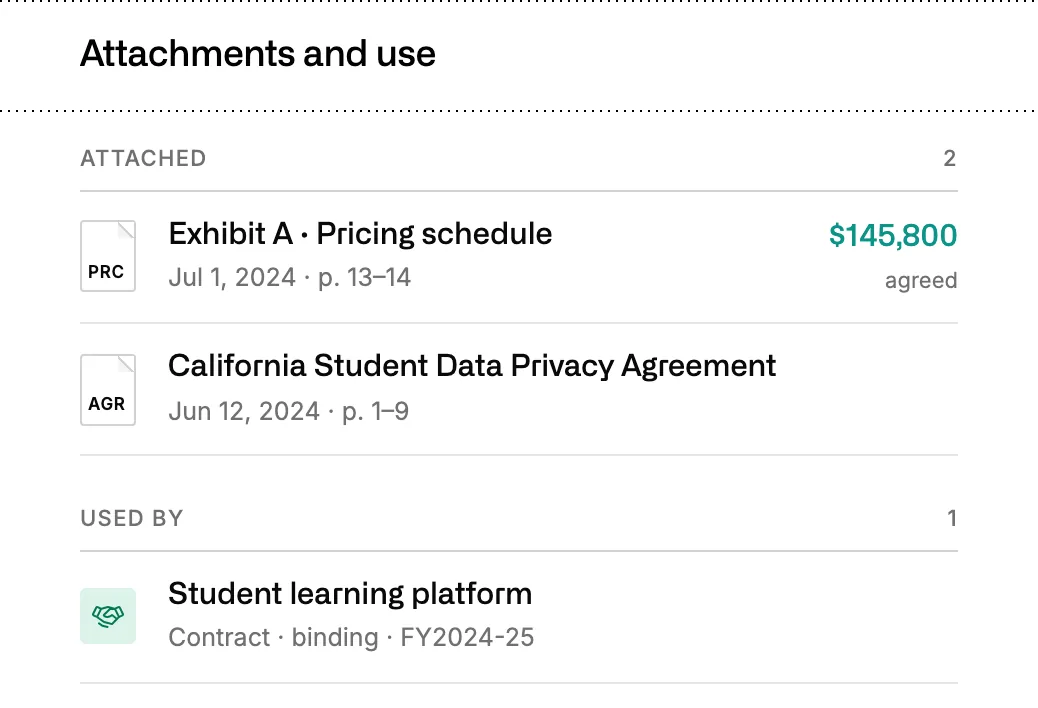
When a contract and its student data privacy agreement are both in the Library, they’re linked, so renewal season starts with a list of the apps that still need one.

Try asking

Which apps renew this year without a signed data privacy agreement on file?

An agreement’s attachments: the pricing schedule and the California Student Data Privacy Agreement, and the contract that uses them.

Drafts the renewal paperwork and acts once you approve.

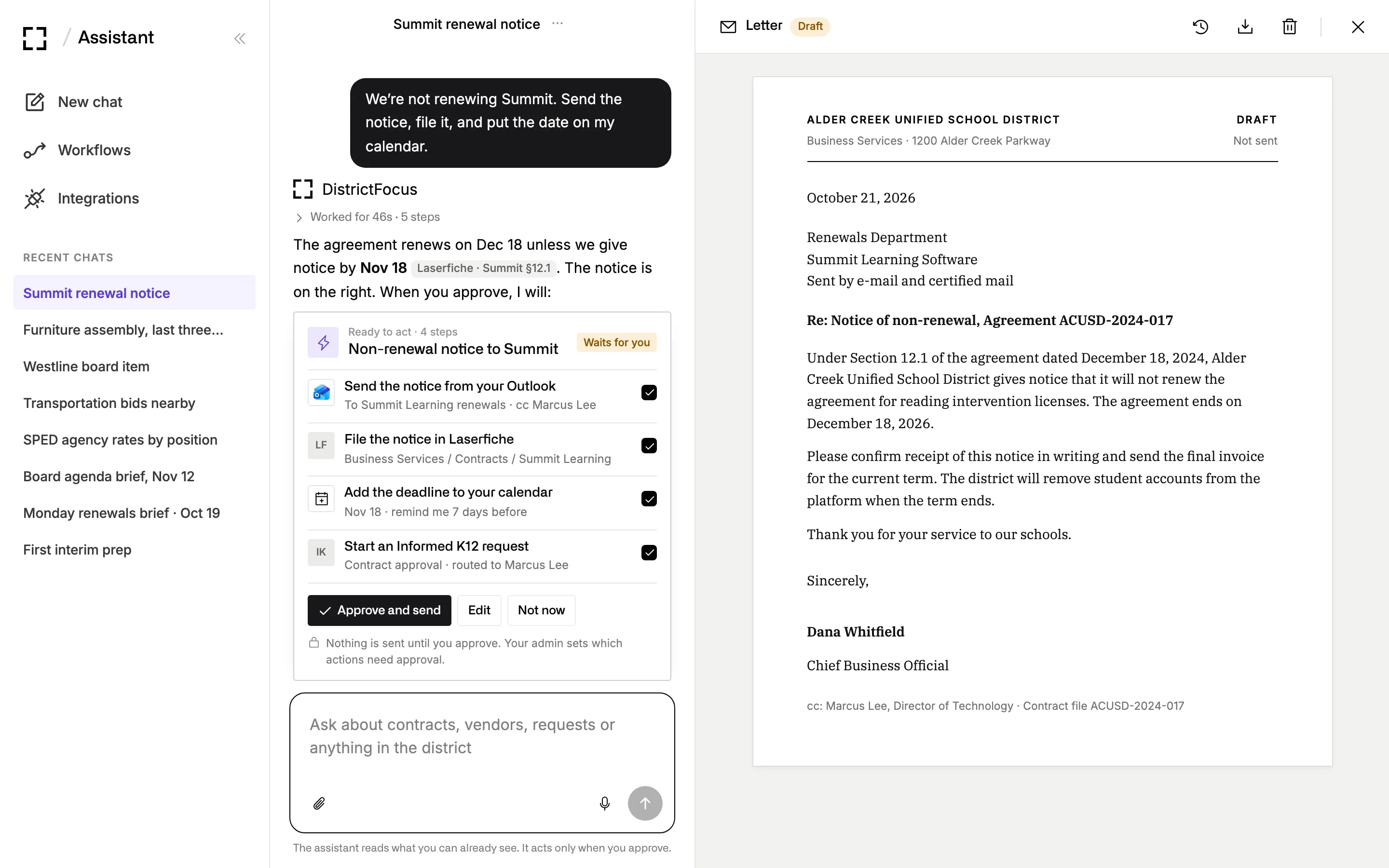
It drafts the line-item pricing request or the notice to renegotiate under the contract’s terms. When you approve, it sends, files and puts the deadline on your calendar in the tools you’ve connected.

Try asking

Draft an e-mail asking our filtering vendor for line-item pricing before we renew.

A Ready to act card with four steps (send from Outlook, file in Laserfiche, add the deadline, start a request) beside a drafted notice letter.

For your review

What your review will want to see.

Most districts review a tool before staff can use it. Here’s how District Focus handles access, logging and other AI apps. The full answers are on the trust page.

Read the trust page

Connections

You decide what it can reach.

Your admin sets up each connection with a key your district creates. Systems are read-only unless you allow an action, and student areas in your SIS stay switched off. The Connections page shows what District Focus may and may not do in each one.

Settings, Connections: systems grouped by job with Read-only or Acts with approval badges, an SIS connected for staff only with student areas denied, and a key pane listing permissions.

Run history

Every step is on the record.

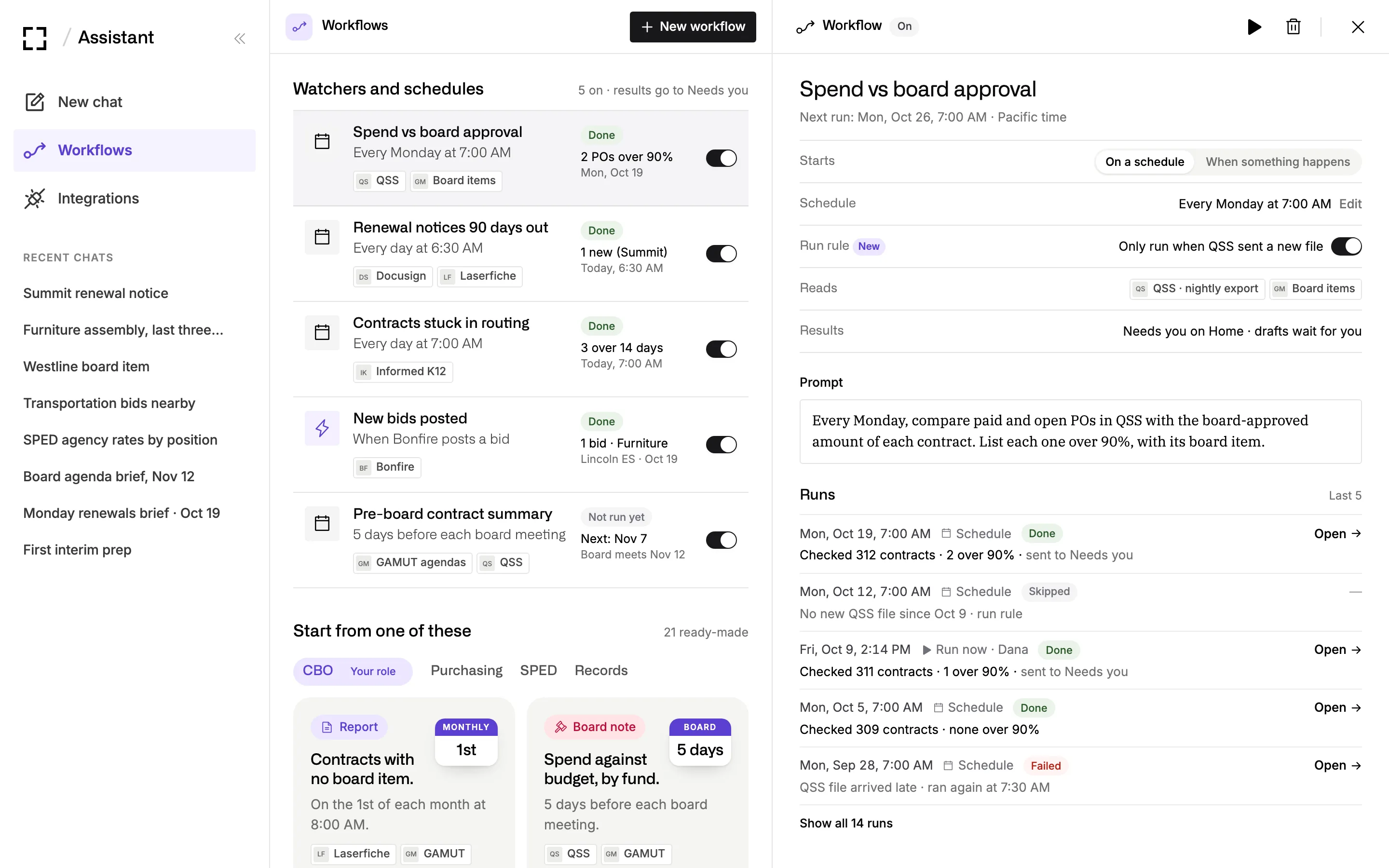
Each action the Assistant takes writes a log entry: who asked, which tool, which records and when. Scheduled work keeps its own run history, with what it read and where the result went.

Workflows: watchers and schedules with the systems each one reads, and one workflow open with its run rule and last five runs.

Other AI apps

Works from the chat app your district already approved.

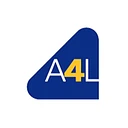
If your district has approved another AI chat app, staff can reach District Focus from it through a connector, with their own login and the same permissions.

A chat app using the District Focus connector: three tool calls, then an answer with a renewal table and a note that it came from District Focus with the person’s own login and permissions.

Your year

From the July renewals to the E-rate windows.

Attach routines to the state and USAC dates your team already works to, and the counts and drafts are ready before each one.

  1. All year Coming up

    A privacy agreement for each app that touches student data, along with your AI policy and filtering.

    Ed Code 49073.1

    What the Assistant hands you: Privacy agreement status on each contract as it comes up for renewal.

  2. Jul to Aug Coming up

    Device refresh and rostering for the new year. Many licenses renew July 1, when the E-rate funding year begins.

    What the Assistant hands you: A software renewals brief with seats set against the new year’s counts.

  3. Early Oct Coming up

    Census Day sets enrollment for the year.

    What the Assistant hands you: Per-student licenses checked against the new count.

  4. Late Oct Coming up

    Invoice deadlines for last year’s E-rate services, and Form 486 filings for this year.

    USAC

    What the Assistant hands you: E-rate status from USAC data: what needs action this month.

  5. Winter Coming up

    Form 470 posted at least 28 days before you choose a provider, then the Form 471 window.

    USAC

    What the Assistant hands you: What similar districts paid for internet and Wi-Fi, from USAC open data, beside your contracts.

  6. Spring Coming up

    Testing windows, budget requests and the renewals that start July 1.

    What the Assistant hands you: The overlap map and licenses against enrollment, before renewal decisions.

Try asking

Ask it the way you’d ask your data team.

These are requests a technology director might hand it. Usage comes in as counts per app.

  • Licenses

    Compare the licenses in our technology contracts with Census Day enrollment and staff counts. Where do we pay for seats we don’t use?

  • Overlaps

    Map our technology contracts by the job each tool does. Where do two tools do the same job, and when is the next decision on each?

  • Pricing

    We buy Microsoft 365 through the state contract. Are we on the same plan, SKU and price as districts our size?

  • E-rate

    What did our E-rate requests fund this year, with which provider and for how much? Flag anything that needs action this month.

  • Renewals

    Which software renews in the next 60 days, and which renews on its own?

  • Vendor e-mail

    Draft an e-mail asking our filtering vendor for line-item pricing before we renew.

  • Usage

    Show logins per app from ClassLink against the seats we pay for.

  • Privacy

    Which apps renew this year without a signed data privacy agreement on file?

  • Board

    Draft the board item for the Wi-Fi refresh, with what districts our size paid on E-rate.

  • Notice

    Write a notice that we want to renegotiate the device-management contract, following its notice terms.

Systems

It connects with keys your district creates.

It reads your rostering tools, your SIS with student areas switched off, your learning platforms and IT systems, and public E-rate and state data. Your admin can revoke any key.

  • ClassLink App usage
  • Clever Rostering
  • Edlink Rostering
  • OneRoster Data standard
  • Aeries Staff and schools
  • PowerSchool Staff and schools
  • Infinite Campus Staff and schools
  • Synergy Staff and schools
  • Canvas Learning
  • Schoology Learning
  • Google Classroom Learning
  • Incident IQ Assets and tickets
  • Google Drive Files
  • SharePoint Files
  • SDPC registry Privacy agreements
  • USAC E-rate Public data
  • CDE Public data
  • The web Vendor documentation

Privacy and security

The short version for your review.

  • Each district works in its own space. People from another district can’t open your files, documents, chats or requests.
  • Every action the Assistant takes is logged: who asked, which tool, which records, and when.
  • We don’t train AI models on your data.
  • When the Assistant searches the web, it sends a short search phrase to a search service. It’s told to keep personal and student information out of every search.

Bring your review questions.

We’ll walk your team through access, logging and the AI underneath, then show the Assistant counting seats for a sample district.